Ex.No.1: To operate /use various ICT tools such as computer, Laptop / Internet Interactive whiteboard, Tablet PC, iPad, iPhone, Mobile phones, Digital cameras, Multimedia equipment (audio/video), Skype and Video -conferencing.
HOW TO USE ICT TOOLS
1.How to turn on a computer:
Step 1: Find the ‘on’ button.
Step 2: Push the button.
Step 3: Now you need to log in.
If you’re the only user of your computer, once it’s turned on it may go straight to the desktop:
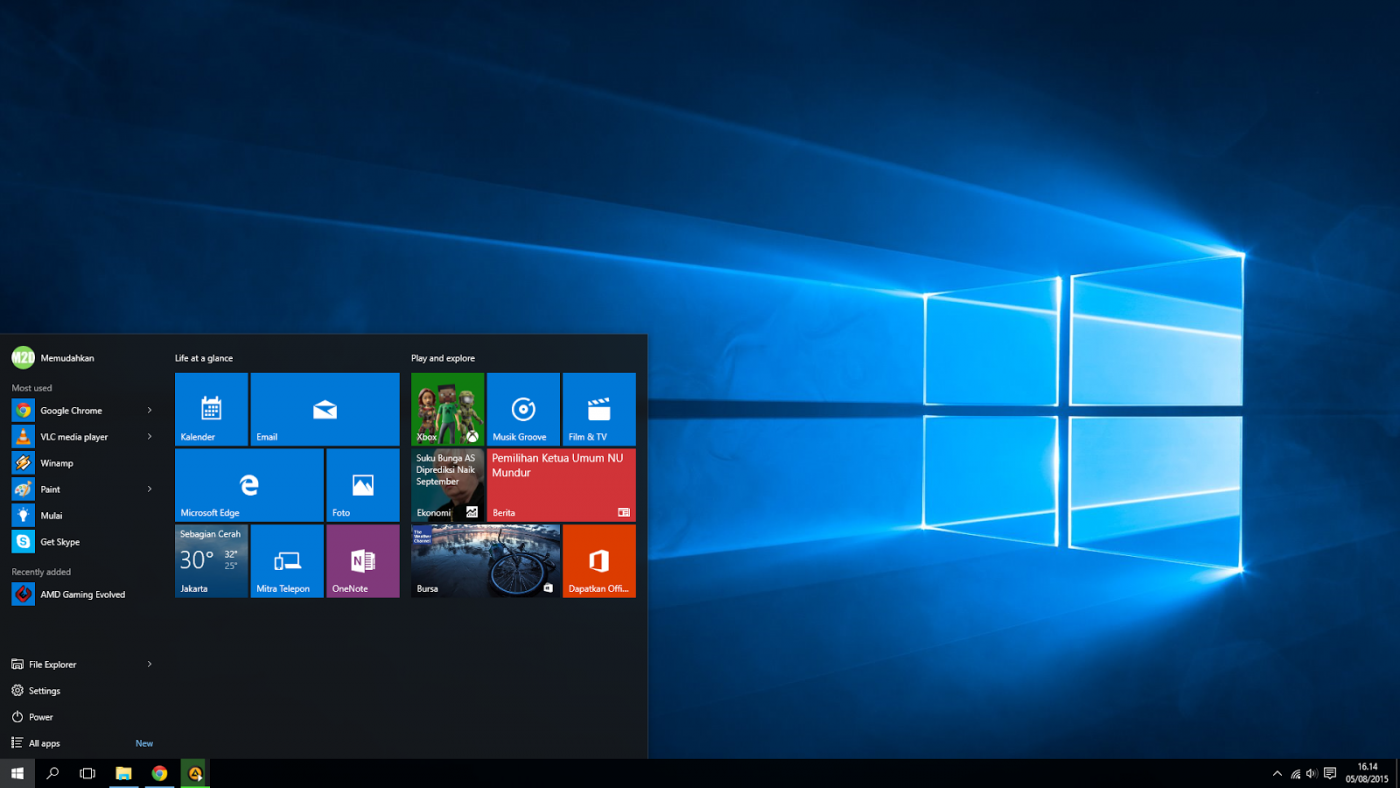

If you’re sharing your computer with other people, each one will usually have their own account. When you click the icon with your name, you’ll be asked for a password. The main user or administrator should set this up for you before you begin. Type in your password and click the arrow.
Computer:
1. Power On/Off:--Press the power button to turn on the computer.
To shut down, click on the Start menu, then select "Shut Down."
2. Login:
-- Enter your username and password.
3. Desktop:
---Icons on the desktop represent programs/files. Double-click to open
them.
4. Start Menu:
-- Click on the Start menu to access programs, settings, and files.
5. Internet Browser:
-- Double-click on the browser icon (e.g., Chrome, Firefox) to open.
6. Using Applications:
-- Open applications by double-clicking on their icons or through the
Start menu.
7. File Management:
-- Save and organize files in folders on the desktop or in the File
Explorer.
Laptop:
1. Power On/Off:-- Similar to a computer, press the laptop's power button to turn it on/off.
2. Login:
-- Enter your username and password.
3. Touchpad/Pointing Device:
-- Use the touchpad or pointing device to move the cursor.
4. Keyboard:
-- Type using the laptop's keyboard.
5. Connect to Wi-Fi:
-- Click on the Wi-Fi icon in the taskbar, select a network, and enter the
password.
6. External Devices:
--Connect USB drives, printers, or other peripherals to the laptop.
7. Battery Management:
--Monitor battery status and connect the charger when needed.
-- Make sure your device is connected to a Wi-Fi network or through an
Ethernet cable.
2. Open Web Browser:
-- Double-click on the browser icon (e.g., Chrome, Firefox).
3. Navigate Websites:
-- Enter a website URL in the address bar and press Enter.
4. Search Engines:
-- Use search engines (e.g., Google) by typing queries in the search bar.
5. Email:
-- Access your email by signing in to your email provider's website or
using a desktop email client.
6. Social Media:
-- Log in to social media platforms (e.g., Facebook, Twitter) to connect
with others.
7. Online Security:
-- Be cautious about personal information. Use strong passwords and
update them regularly.
2. Calibrate the whiteboard to ensure accurate touch or pen input.
3. Use the provided interactive pen or your finger to interact with the content.
4. Open interactive software (e.g., Smart Notebook) on the computer for
creating or presenting content.
5. Save or share your work as needed.
2. Navigate through apps using touch gestures.
3. Install relevant apps for productivity and educational purposes.
4. Use the stylus or finger for writing or drawing on the tablet.
5. Connect to the internet or other devices for communication.
2. Download and install apps from the App Store.
3. Use built-in applications for tasks like notes, camera, and communication.
4. Customize settings for optimal functionality.
5. Explore additional features like AirDrop and AirPlay for sharing content.
2. Access apps for various purposes (calls, messages, internet, etc.).
3. Customize settings and preferences.
4. Install and update apps from the respective app store.
5. Utilize features like camera, voice commands, and mobile internet.
Digital Cameras:
1. Insert a charged battery and a memory card.
2. Power on the camera and set the mode (e.g., photo, video).
3. Frame the shot using the viewfinder or screen.
4. Adjust settings such as focus, exposure, and flash as needed.
5. Capture the image or video, and review or transfer files as necessary.
2. Connect multimedia sources (computers, DVD players, etc.) using
appropriate cables.
3. Set input sources and adjust volume levels.
4. Play or project multimedia content.
5. Troubleshoot any issues with connections or playback.
2. Sign in or create an account.
3. Set up audio and video settings, including testing the microphone and camera.
4. Initiate or join a video call.
5. Use features like screen sharing and chat during the conference.
2. Login:
-- Enter your username and password.
3. Touchpad/Pointing Device:
-- Use the touchpad or pointing device to move the cursor.
4. Keyboard:
-- Type using the laptop's keyboard.
5. Connect to Wi-Fi:
-- Click on the Wi-Fi icon in the taskbar, select a network, and enter the
password.
6. External Devices:
--Connect USB drives, printers, or other peripherals to the laptop.
7. Battery Management:
--Monitor battery status and connect the charger when needed.
Internet:
1. Connect to the Internet:-- Make sure your device is connected to a Wi-Fi network or through an
Ethernet cable.
2. Open Web Browser:
-- Double-click on the browser icon (e.g., Chrome, Firefox).
3. Navigate Websites:
-- Enter a website URL in the address bar and press Enter.
4. Search Engines:
-- Use search engines (e.g., Google) by typing queries in the search bar.
5. Email:
-- Access your email by signing in to your email provider's website or
using a desktop email client.
6. Social Media:
-- Log in to social media platforms (e.g., Facebook, Twitter) to connect
with others.
7. Online Security:
-- Be cautious about personal information. Use strong passwords and
update them regularly.
Interactive Whiteboard:
1. Turn on the interactive whiteboard and the connected computer.2. Calibrate the whiteboard to ensure accurate touch or pen input.
3. Use the provided interactive pen or your finger to interact with the content.
4. Open interactive software (e.g., Smart Notebook) on the computer for
creating or presenting content.
5. Save or share your work as needed.
Tablet PC:
1. Power on the tablet and unlock the screen.2. Navigate through apps using touch gestures.
3. Install relevant apps for productivity and educational purposes.
4. Use the stylus or finger for writing or drawing on the tablet.
5. Connect to the internet or other devices for communication.
iPad/iPhone:
1. Unlock the device and navigate through apps on the touchscreen.2. Download and install apps from the App Store.
3. Use built-in applications for tasks like notes, camera, and communication.
4. Customize settings for optimal functionality.
5. Explore additional features like AirDrop and AirPlay for sharing content.
Mobile Phones:
1. Power on the phone and unlock the screen.2. Access apps for various purposes (calls, messages, internet, etc.).
3. Customize settings and preferences.
4. Install and update apps from the respective app store.
5. Utilize features like camera, voice commands, and mobile internet.
Digital Cameras:
1. Insert a charged battery and a memory card.
2. Power on the camera and set the mode (e.g., photo, video).
3. Frame the shot using the viewfinder or screen.
4. Adjust settings such as focus, exposure, and flash as needed.
5. Capture the image or video, and review or transfer files as necessary.
Multimedia Equipment (Audio/Video):
1. Power on audio/video equipment (speakers, projectors, etc.).2. Connect multimedia sources (computers, DVD players, etc.) using
appropriate cables.
3. Set input sources and adjust volume levels.
4. Play or project multimedia content.
5. Troubleshoot any issues with connections or playback.
Skype and Video Conferencing:
1. Download and install the Skype or video conferencing software.2. Sign in or create an account.
3. Set up audio and video settings, including testing the microphone and camera.
4. Initiate or join a video call.
5. Use features like screen sharing and chat during the conference.


Comments
Post a Comment